Start with what you would miss
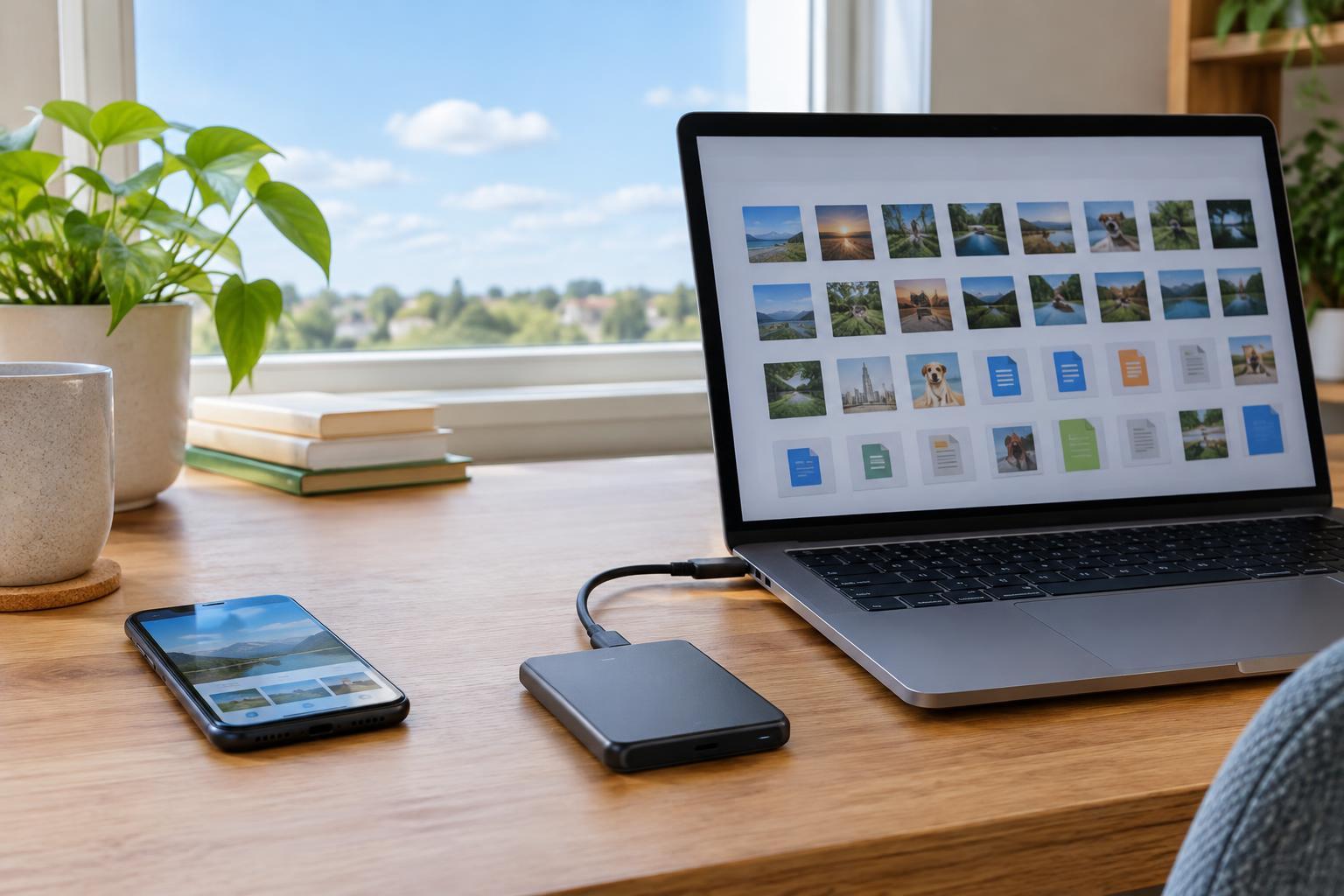
Backing up can sound like a technical project, but the goal is simple: keep another usable copy of things you would not want to lose. Think about photos, videos, documents, notes, contacts and creative work. Also consider files that are easy to overlook, such as downloads you have edited or recordings saved inside an app.
Make a short list of where those things live. Some may be on your phone, some on your computer and some only inside particular apps or online accounts. This step helps you avoid assuming that one backup setting covers everything. An app may save its own data online, require a separate export or leave some items stored only on the device.
You do not have to preserve every temporary file. Begin with the irreplaceable items, then add settings and apps if your backup method supports them. This keeps your first attempt manageable and makes it easier to check whether the result is useful.
Know the difference between syncing and backing up
Syncing keeps information consistent across devices. If you edit a note on your phone, the change may appear on your computer. That is convenient, but a mistaken deletion may also spread. A backup gives you a separate copy you can use to recover from a problem. Some cloud services offer both syncing and ways to recover older or deleted files, but their features and retention periods vary.
For important files, aim to have more than one copy and keep at least one away from your main device. A cloud backup can help if a device is lost or damaged. An external drive can provide a local copy that does not depend on your internet connection. Using both, where practical, gives you options if one method fails.
Keep the distinction in mind when choosing a service or setting. Ask: Does this merely show the same files on another device, or can I restore an earlier copy? Knowing the answer matters more than the name on the button.
Set up your phone backup
Open your phone’s settings and look for backup options associated with its main account or operating system. Read what is included before turning on automatic backup. Photos may use a separate photo service, while messages, app data and device settings may be handled differently. The available choices depend on your phone, apps and account.
Check that you are signed in to the account you intend to use and that it has enough available storage. If you choose cloud backup, connect to a reliable network and follow any prompts about charging or permissions. Then look for a backup status or last-completed time. A setting marked “on” is less reassuring than a backup that has actually finished.
Pay special attention to apps holding material you cannot easily recreate. For example, a notes, messaging or recording app may have its own export or backup controls. Before replacing a phone, check those apps individually rather than relying on the device-level backup alone.
Give your computer an automatic routine
Computers usually offer built-in backup or file-history tools, and cloud storage services may offer additional options. Choose a method that covers the folders where you actually work, not just the default locations. If you keep projects on the desktop, in downloads or on a separate drive, confirm whether those places are included.
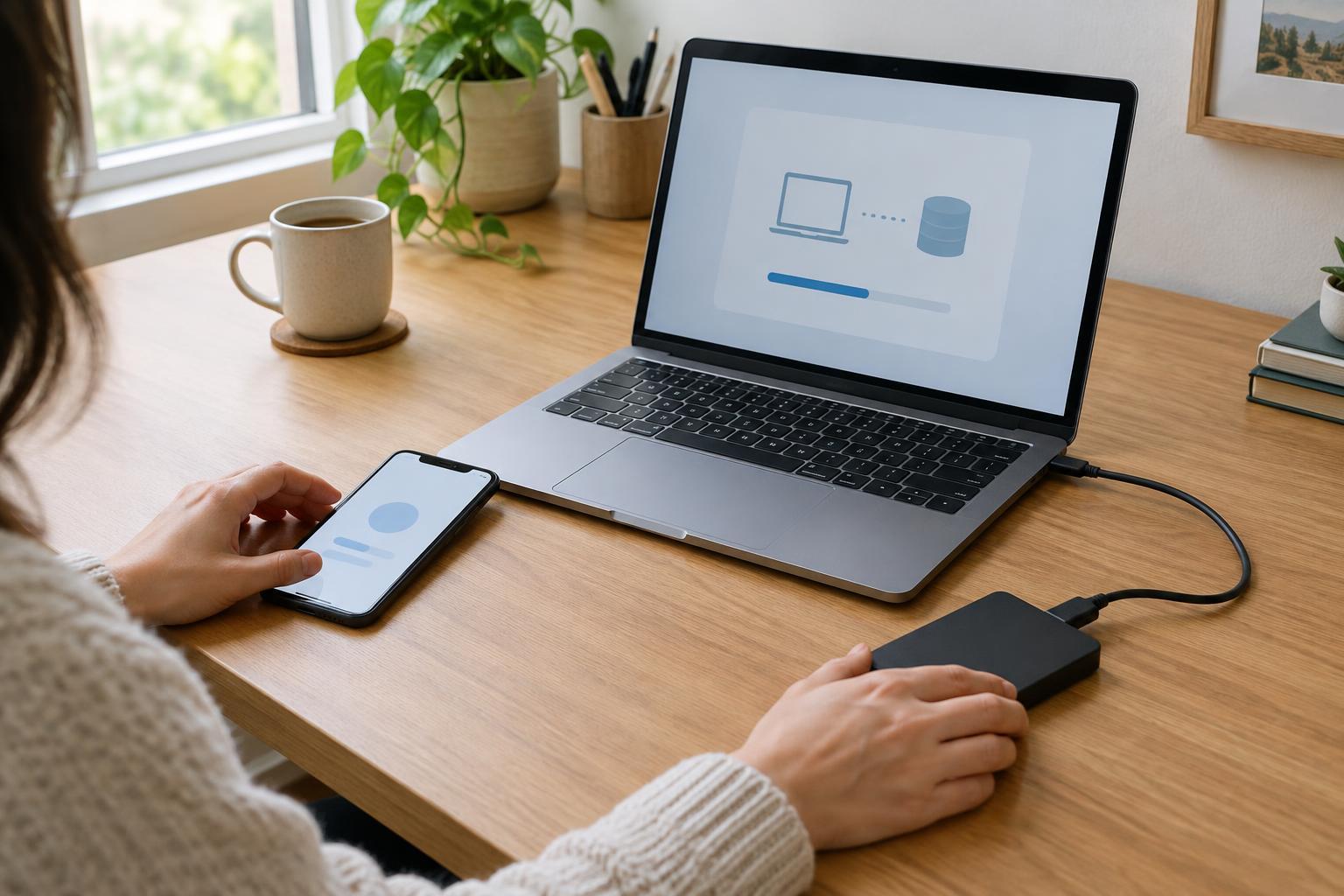
An external drive is a straightforward place to start. Choose one with room for your files and future changes, follow your computer’s backup setup, and allow the first backup to finish. If you also use a cloud service, check whether it is backing up your chosen folders or simply syncing them. Automatic backups are easier to maintain than a plan that depends on remembering to copy files by hand.
Protect access to your copies. Use strong, unique account passwords and available sign-in protections for cloud services. If you encrypt a backup, keep its recovery password or key somewhere safe and accessible to you; losing it could make the copy unusable. Store a portable drive safely, and do not leave your only backup attached to your computer all the time.
Test recovery and make it a habit
A backup is only reassuring if you can retrieve something from it. After setup, try restoring a noncritical file to a different location. Open it and check that it is the version you expected. On a phone, review the backup details and learn where the restore option is, even if you do not need to use it now.
Revisit your setup whenever your habits change. A new computer folder, photo app or device may not be covered by an older plan. Occasionally check the last successful backup, available storage and any error messages. If an external drive requires you to connect it, choose a recurring reminder that fits your routine.
You do not need a perfect system on day one. Start with the files you value most, make one reliable copy, then add another method if you can. A simple routine that you check and maintain is far more useful than an elaborate plan you never finish.