What two-factor authentication adds
A password is something you know. Two-factor authentication, often called 2FA, asks for another kind of proof when you sign in, such as a code from a device you have. If someone obtains your password, that extra step can make it harder for them to access your account. It does not make an account invulnerable, but it provides a useful layer of protection.
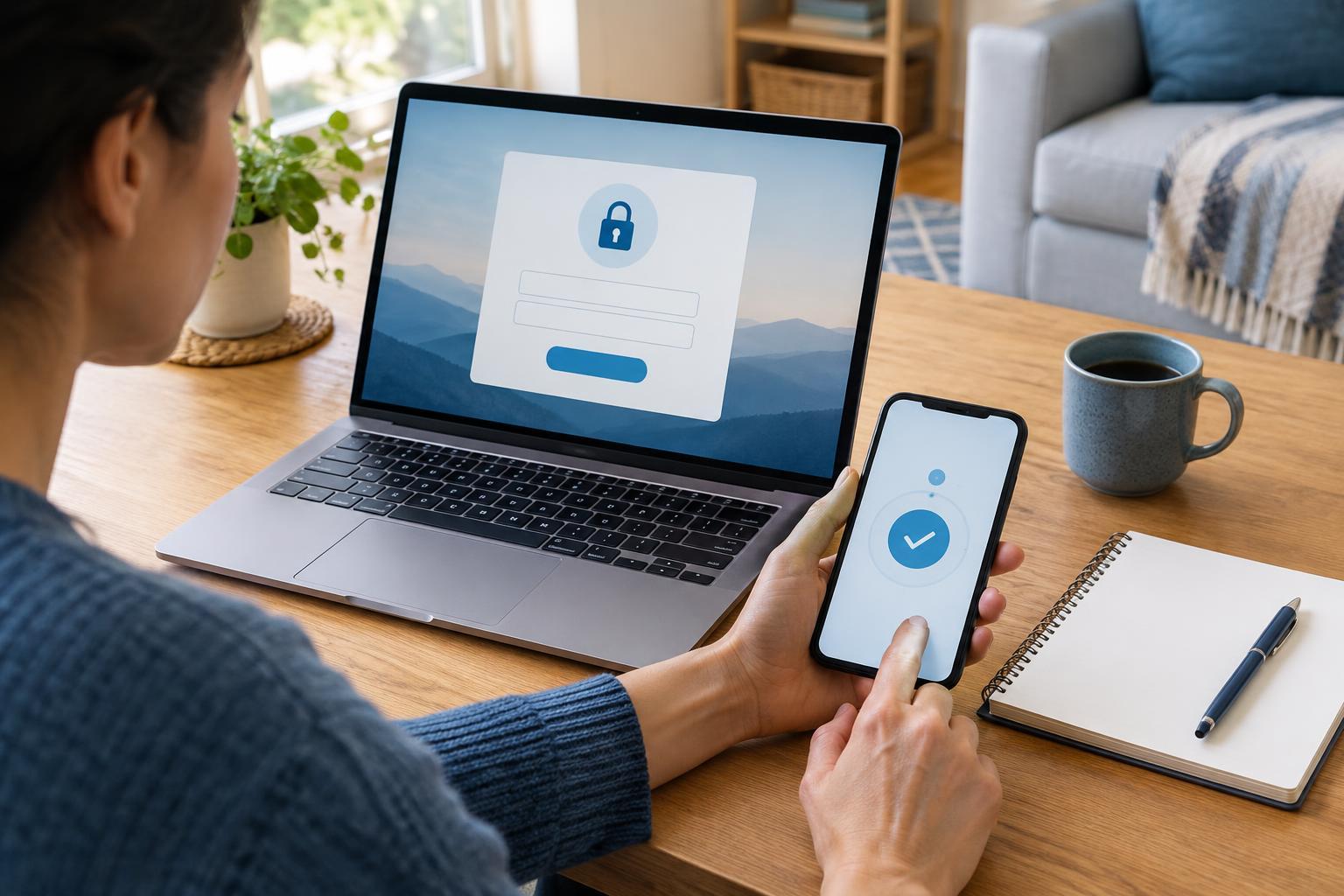
You may also see the term multi-factor authentication, or MFA. Services do not always use the terms consistently, so the important question is what the sign-in process actually requires. A password followed by a code from an authenticator app is a familiar example of two-factor sign-in. Some services instead ask you to approve a notification on a trusted device or use a security key.
The second check usually appears when you sign in on a new device or after a service decides it needs to verify you again. A trusted device may not ask every time. That convenience is normal, but it makes a screen lock on your phone or computer especially important.
Choose a method you can use reliably
Common choices include text-message codes, authenticator apps, and physical security keys. Text messages are familiar and require little setup, but they can be delayed, and access to a phone number can sometimes be taken over. An authenticator app generates short-lived codes on your device without needing a text message at sign-in. A security key is a separate device that you connect or tap when prompted; where supported, it can offer strong protection against fake sign-in pages.
The best option is one you can set up correctly and keep available. If a service offers several methods, consider using an authenticator app or security key as your main method and adding a separate backup method. Check whether the service supports more than one key or device. A backup that depends on the same lost phone as your main method may not help much.
Some accounts offer passkeys as an alternative way to sign in. They work differently from the familiar password-and-code process, so follow that service’s instructions rather than assuming you also need to enter a 2FA code. The goal is the same: make signing in convenient for you and difficult for someone who should not have access.
Set it up one account at a time
Start with an account that could unlock others, such as your primary email account. Sign in by opening the service’s app or typing its address yourself, then look in Settings for Security, Sign-in, or Two-Factor Authentication. Choose a method and follow the on-screen steps. For an authenticator app, you will usually scan a square code with the app and enter the number it generates to confirm setup. Do not share the setup code or a screenshot of it.
After confirmation, sign out and test a fresh sign-in while you still have access to your existing device. Make sure you understand when the second check appears and which device or app supplies it. Then repeat the process for other important accounts, such as cloud storage, shopping, social media, and any account that stores sensitive personal information.
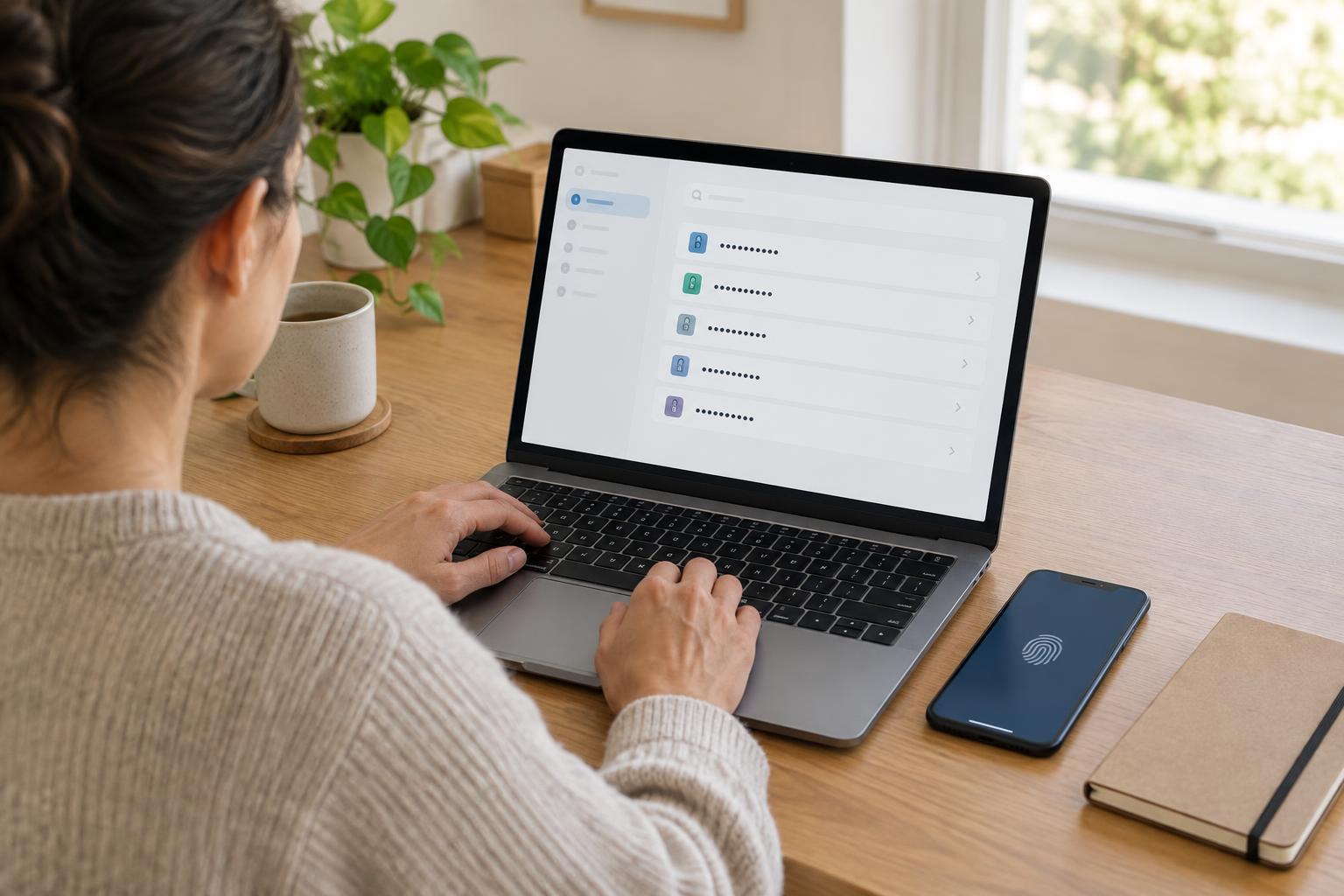
Use a unique password for each account alongside 2FA. A password manager can help you create and keep track of those passwords. Two-factor authentication is an extra layer, not a replacement for a strong password or for keeping your devices updated and locked.
Plan for a lost phone before it happens
Many services provide one-time backup codes during setup. Save them somewhere private that you can reach without your phone, such as a secure password manager or a paper copy kept in a safe place. Each code may work only once. If you use one, check whether you need to generate a fresh set. Never store backup codes in a public folder or share them with someone offering to “help” you sign in.
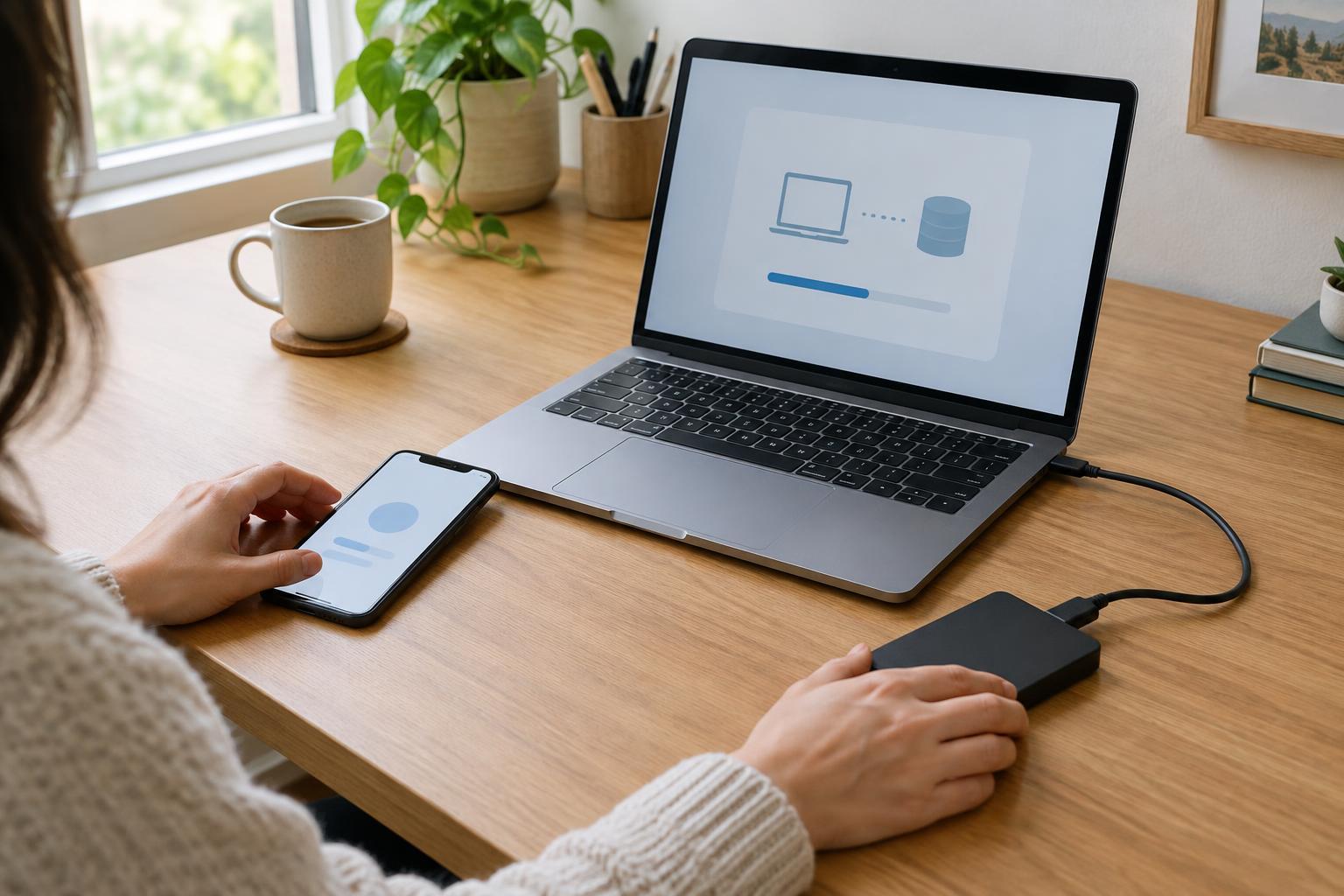
Before changing phones, check how your authenticator app transfers or restores accounts. The process varies by app and service. While you still have your old device, confirm that codes on the new device work. Also review your account’s recovery email, phone number, and trusted devices so they are accurate. Removing an old method too early can make recovery difficult.
Treat unexpected prompts as a warning
Only enter a verification code when you initiated the sign-in, and check that you are using the intended app or site. A message asking you to read a code aloud, send it in a chat, or approve a sign-in you did not start is a warning sign. Decline unexpected approval prompts rather than tapping through them.
If you receive a code or prompt without trying to sign in, someone may have entered your username and password, or they may simply have triggered a verification request. Do not approve it. Open the account through your usual route, review its recent activity if available, and change the password if you suspect it has been exposed. Once your methods and backups are in place, 2FA should add only a small step to ordinary sign-ins while making unauthorized access harder.