What each option actually does
Local storage means a file lives on a device you control, such as a laptop, phone, external drive or home network drive. Cloud storage means a provider keeps a copy on its systems that you can usually reach through an app or website. Many cloud apps also keep files on your device, so the distinction is not always visible when you open a folder.
The useful question is less “Which one is better?” and more “What do I need this file to do?” A recipe you want on your phone at the grocery store, a large video project you edit at home and a scan of an important document may each need a different setup.
Choose for access and convenience
Cloud storage is handy when you switch between devices or share files with other people. You can start a document on a computer and continue on a phone, provided the file has synced and you can sign in. Shared folders can spare you from sending a new attachment every time something changes. The trade-offs are that uploads may take time, storage plans may have limits or costs, and access can depend on your connection and account.
Local storage is a good fit for files you use on one device, especially large files that would be slow to upload or download. It also works when you have no internet connection. An external drive can provide inexpensive room for an expanding collection, but you need to have it with you, connect it when needed and keep track of its condition.
Before relying on a cloud file while traveling, check whether the app has made it available offline. A filename visible in a synced folder does not always mean the full file is stored on your device.
Think about privacy and control
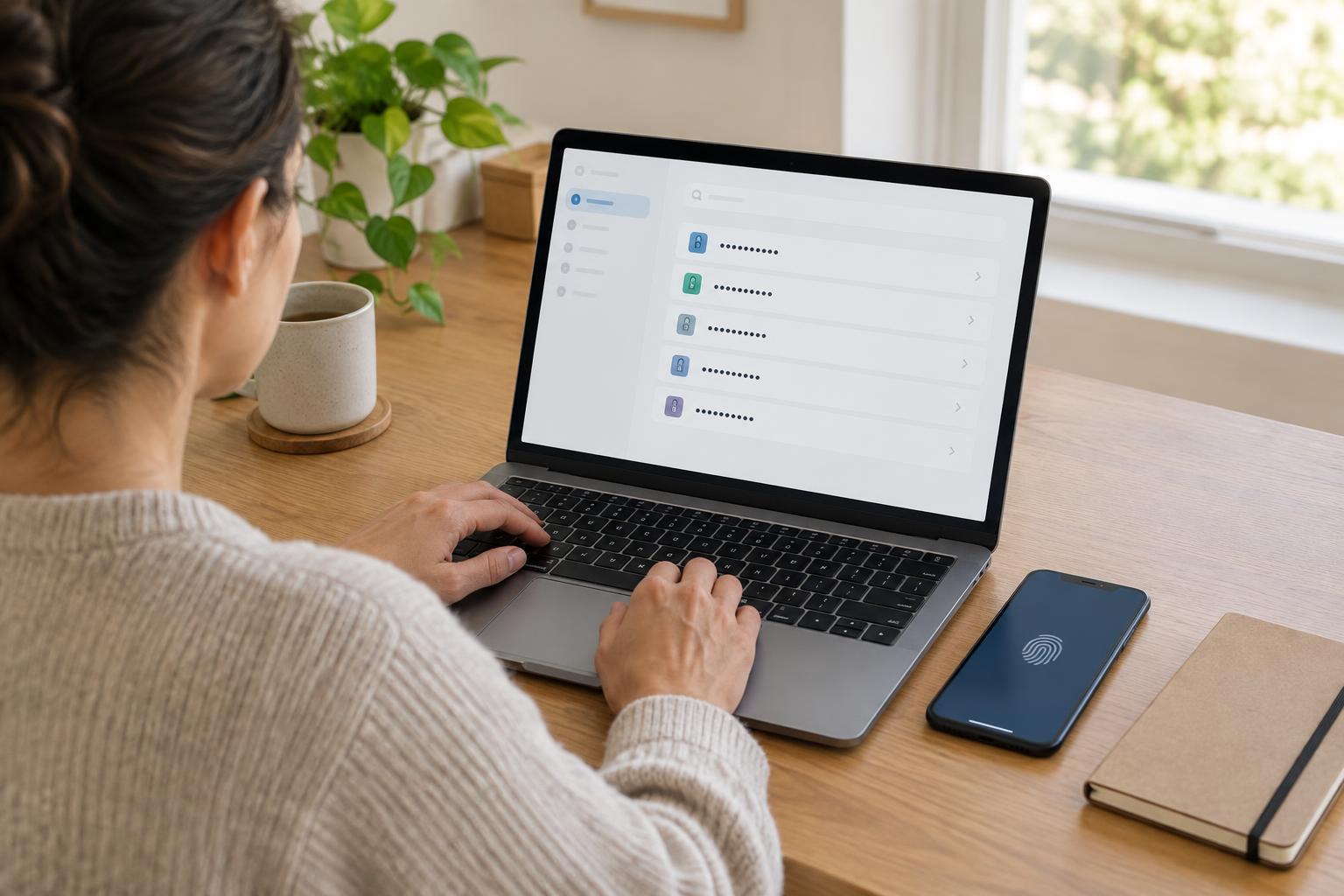
Local storage gives you direct control over where a device is kept and who can physically use it. That does not make it automatically private: a lost laptop, an unprotected external drive or a computer shared with others can expose files. A device password and, where available, device encryption can help protect stored data.
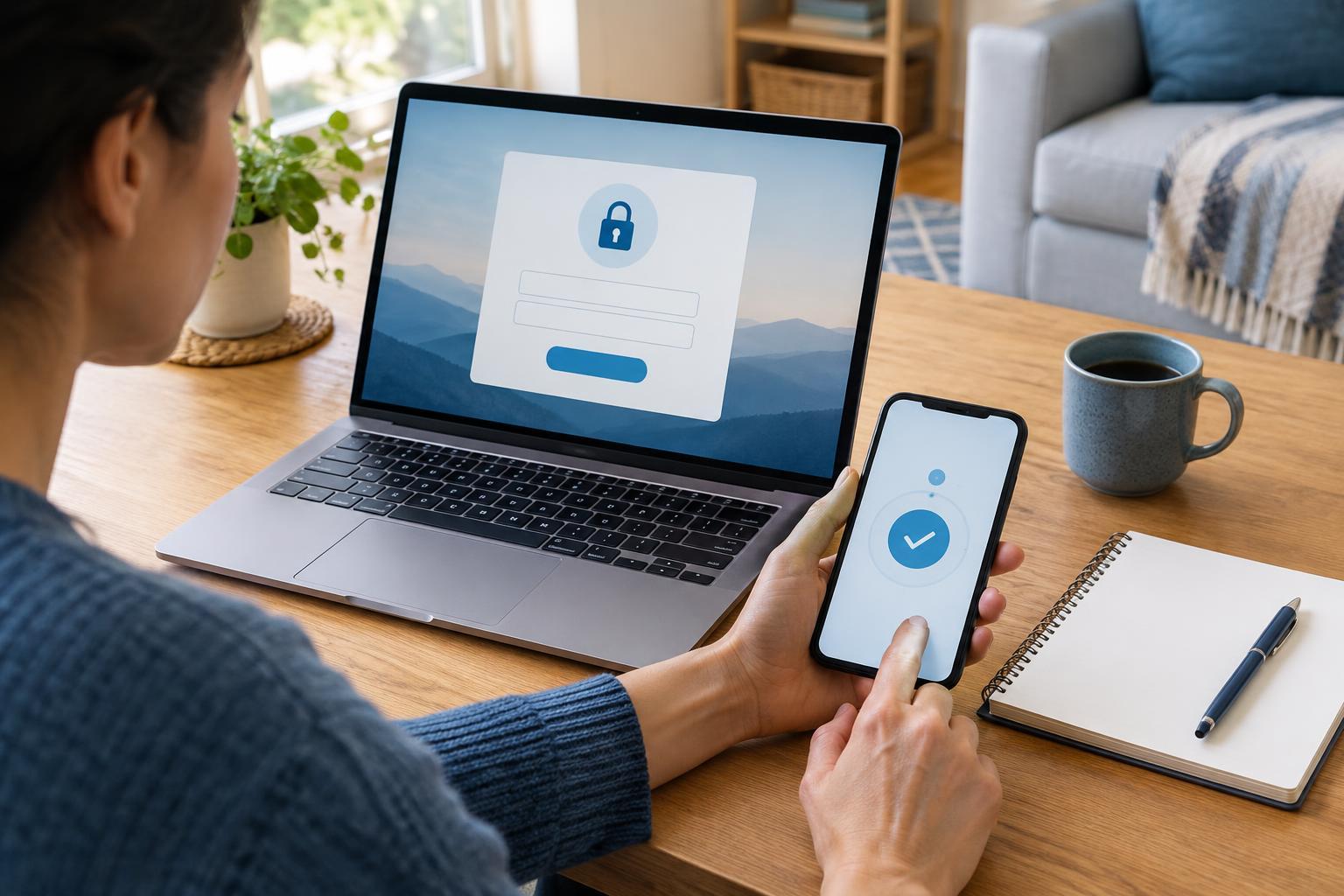
With cloud storage, account security matters. Use a strong, unique password and turn on multifactor authentication if the service offers it. Check sharing settings before uploading anything sensitive to a shared folder, and remove access when a project is finished. If a file is particularly personal, look at the provider’s privacy and recovery options before deciding to store it there.
Neither choice removes the need for care. Choose a setup whose settings you understand well enough to maintain; a complicated system you rarely check is easy to misuse.
Do not confuse syncing with backup
Syncing keeps files consistent across places. That is convenient, but a mistaken deletion or unwanted edit may sync too. Some services offer file history or a trash folder, yet those features can have limits. A backup is a separate copy intended to help you recover when the working copy is lost or damaged.
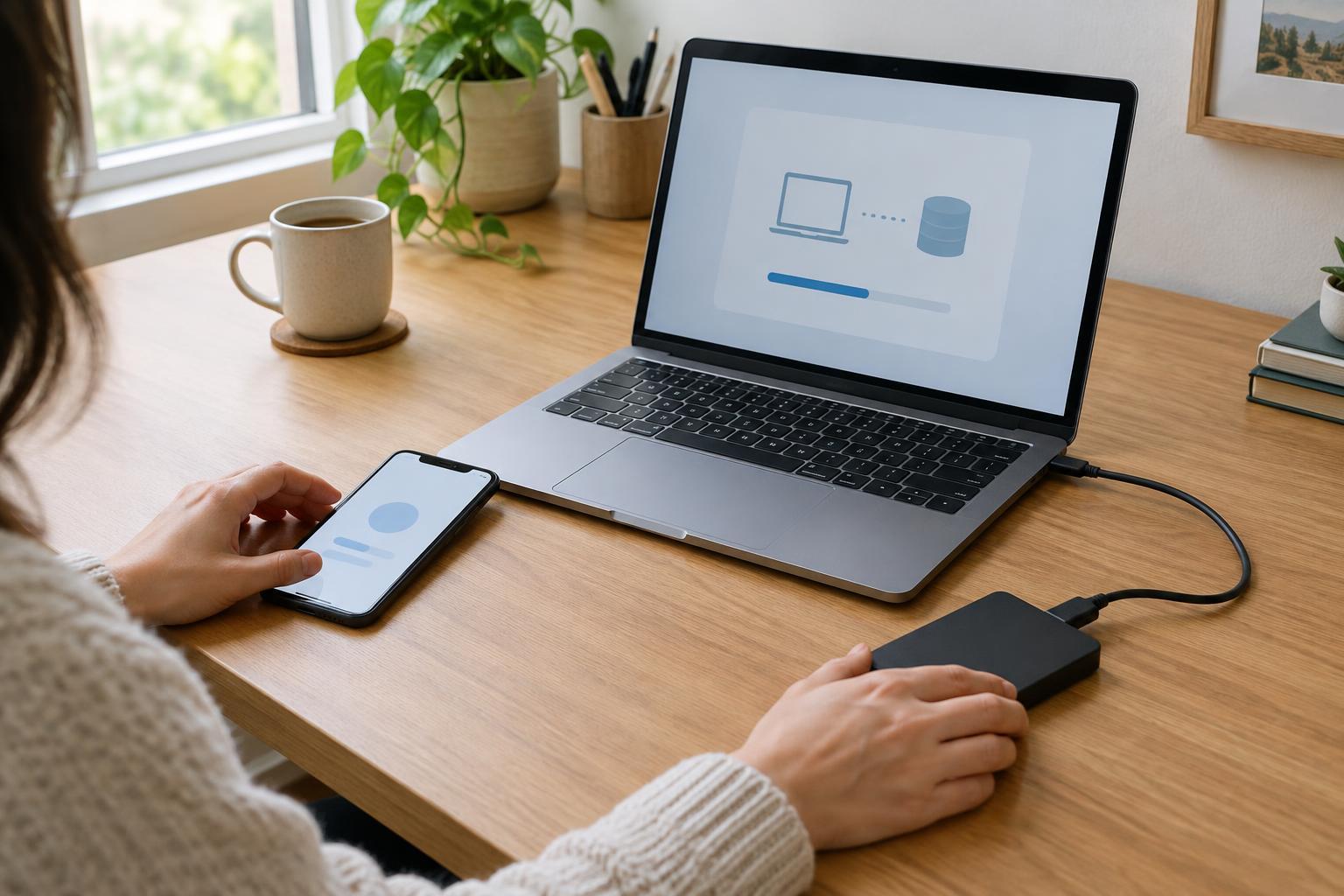
For files you would struggle to replace, keep more than one copy in more than one place. You might work from your computer, back up to an external drive and keep another copy in the cloud. Alternatively, you might work in a cloud folder and keep a separate local backup. The important point is that one mishap, such as a lost device or an account problem, should not take every copy with it.
Test your plan occasionally by opening a file from the backup. A drive you never connect or a backup you cannot restore offers less reassurance than it appears to.
Build a simple plan by file type
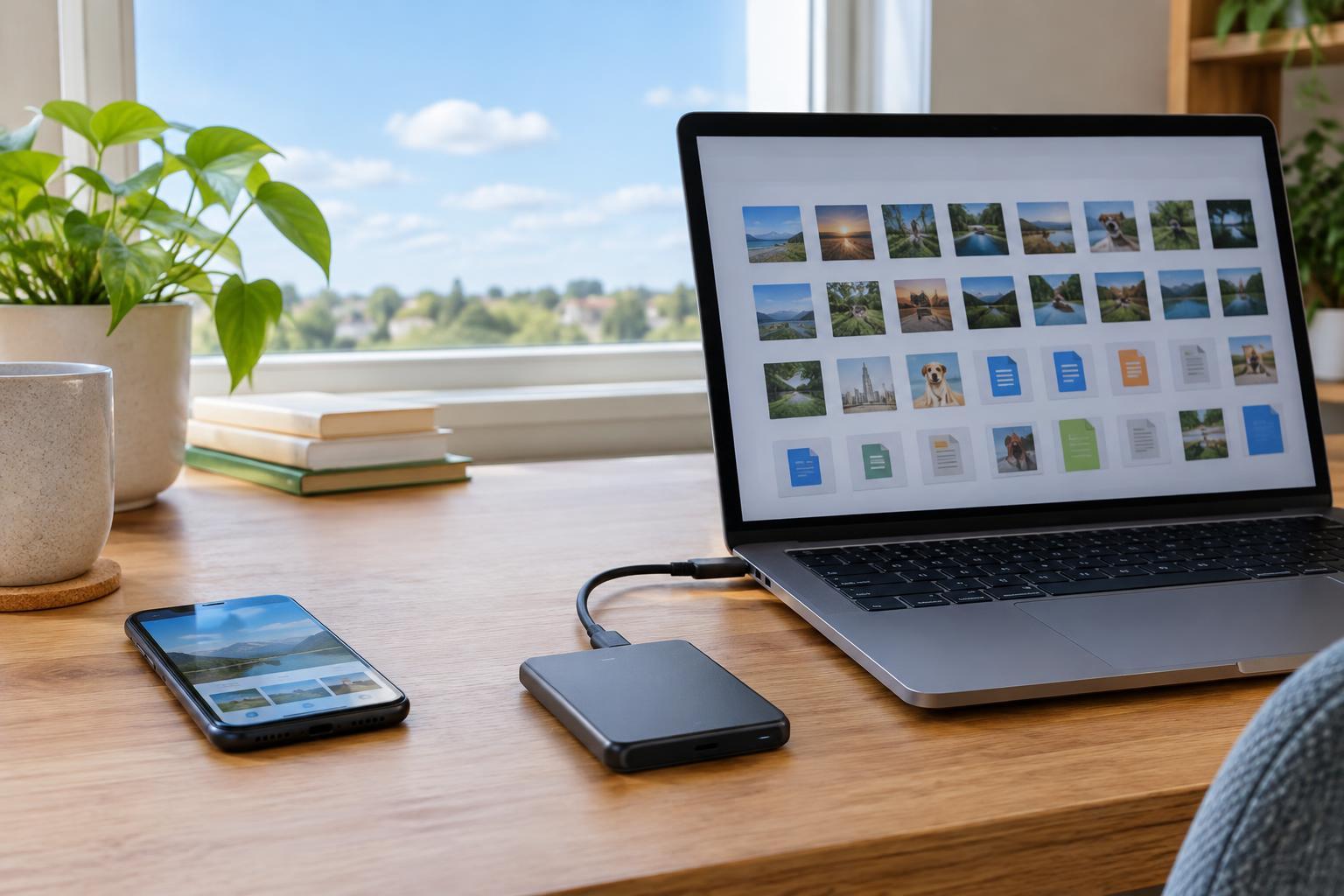
Start with three groups. Put everyday files you use on several devices in a synced cloud folder if that makes your routine easier. Keep large projects on a device with enough space, then back them up separately. Give irreplaceable items, such as personal photos or original creative work, at least one additional copy in a different location.
Next, make the plan easy to follow. Use clear folder names, decide where new files go and review what is being backed up. Check that automatic uploads include the folders you expect; a backup setting may cover photos but not downloads or project files. If you use an external drive, give yourself a regular reminder to connect it.
For most people, the practical answer is not cloud or local storage alone. Use local storage for direct, offline work and cloud storage where access or sharing helps. Then protect the files that matter most with a separate backup.