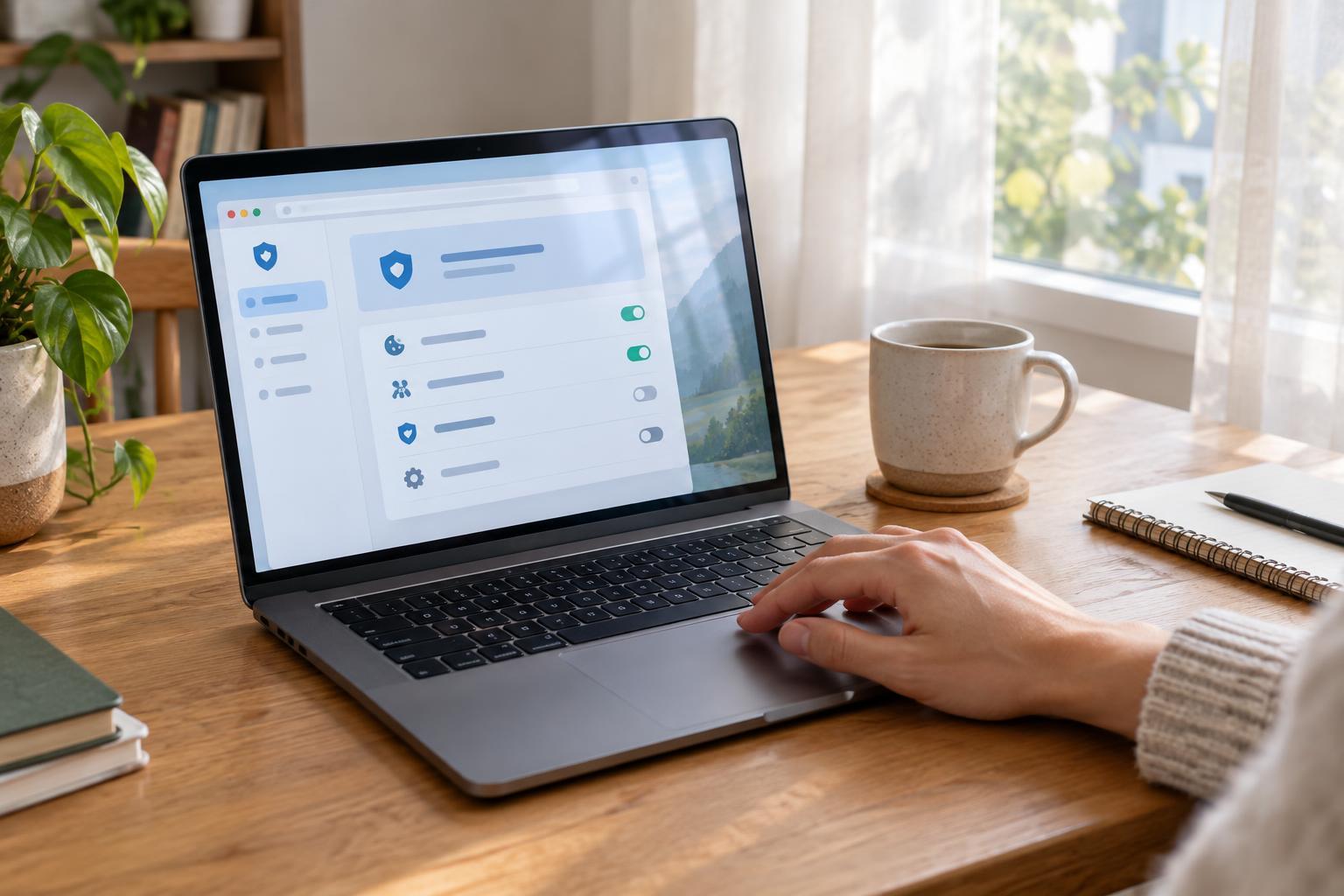
What your browser remembers
A browser does more than display pages. It may save cookies, browsing history, cached files, passwords and permissions you have granted to websites. These records serve different purposes. History helps you find a page again, while cached files can help a familiar page load without downloading every element from scratch. A site permission might allow access to your location, camera or microphone.
A cookie is a small piece of information a website asks your browser to store. It can keep you signed in, remember what is in a shopping basket or save a preference such as your language. Cookies are not all alike: some support a feature you requested, while others may help measure visits or recognize your browser across pages. Understanding that difference is more useful than treating every cookie as either harmless or dangerous.
How tracking goes beyond cookies
A first-party cookie comes from the site you are visiting. A third-party cookie comes from another service included on that page, such as an advertising or measurement provider. If the same provider appears on many sites, it may be able to connect some of your visits. Many browsers now limit third-party cookies, but the available controls and their effects vary.
Blocking cookies does not stop every form of tracking. Sites can also learn from account sign-ins, links containing tracking information and details your browser shares to display a page. Signing in to the same service on different sites, for example, may make your activity easier for that service to associate with your account. Privacy settings can reduce unwanted collection, but they do not make browsing anonymous.
Private or incognito windows solve a narrower problem: they generally avoid keeping local browsing history and cookies from that session after you close its windows. They do not hide your activity from the websites you visit or necessarily from the network you use. Think of a private window as a way to leave less behind on a shared device, not as a disguise online.
Start with settings that fit your routine
Open your browser’s Settings or Preferences menu and look for a section named Privacy, Security or Site Settings. Check whether third-party cookies are blocked or limited. This is a reasonable starting point for many people, although a few embedded features or sign-in flows may need an exception. If something stops working, try allowing that particular site rather than turning off a privacy setting everywhere.
Next, review site permissions. A weather site might have a good reason to request your location; a page you used once may not need ongoing access to your camera or microphone. Remove permissions you no longer recognize or need. You can usually allow access again when a useful feature asks for it.
Finally, look at what the browser saves and syncs. Password saving, autofill and syncing between devices can be convenient, especially on a device only you use. On a shared computer, those same features deserve more caution. Review whether browsing history and open tabs sync to other devices, and sign out of accounts before handing a shared device to someone else.
Make cookie choices without constant cleanup
Cookie banners often offer choices such as accept all, reject optional cookies or customize. When the options are clear, you can decline optional uses while keeping cookies needed for the site to function. If a site repeatedly forgets your choices, check whether your browser is clearing its cookies at the end of every session or blocking the cookie used to remember that preference.
You do not need to clear every cookie every day to be privacy-conscious. Clearing cookies can sign you out and reset useful settings, while doing little about information already associated with an online account. A more manageable approach is to remove data for sites you no longer use, clear a troublesome site’s data when it misbehaves, and periodically revisit your browser’s privacy controls.
Build a small, repeatable habit
Choose a few checks you can repeat: keep the browser updated, review permissions now and then, and pause before accepting optional tracking. If your browser offers a tracking-protection setting, read its description and choose a level that suits how you browse. Stronger blocking may improve privacy but can occasionally interrupt a feature you want.
The best setup is one you understand well enough to maintain. Start with third-party cookie limits and unused permissions, then adjust only when you notice a problem or a setting no longer fits your needs. Browser privacy is less about finding one perfect switch and more about making deliberate choices about what your browser remembers and what websites are allowed to do.