Find out what is taking up space
Before deleting anything, open your phone’s storage settings. Most phones show broad categories such as photos, videos, apps, messages and system files. The labels and menu paths vary, but the breakdown gives you a better starting point than guessing. Check the largest categories first, and note how much free space you have so you can tell whether your cleanup worked.
Pay attention to files that have grown quietly: videos, offline maps, downloaded shows, podcasts and message attachments. An app may take up space both for itself and for material saved inside it. By contrast, a system category may contain files the phone needs; it is usually better to leave those alone than to use a third-party “cleaner” you do not understand.
Protect the files you would miss
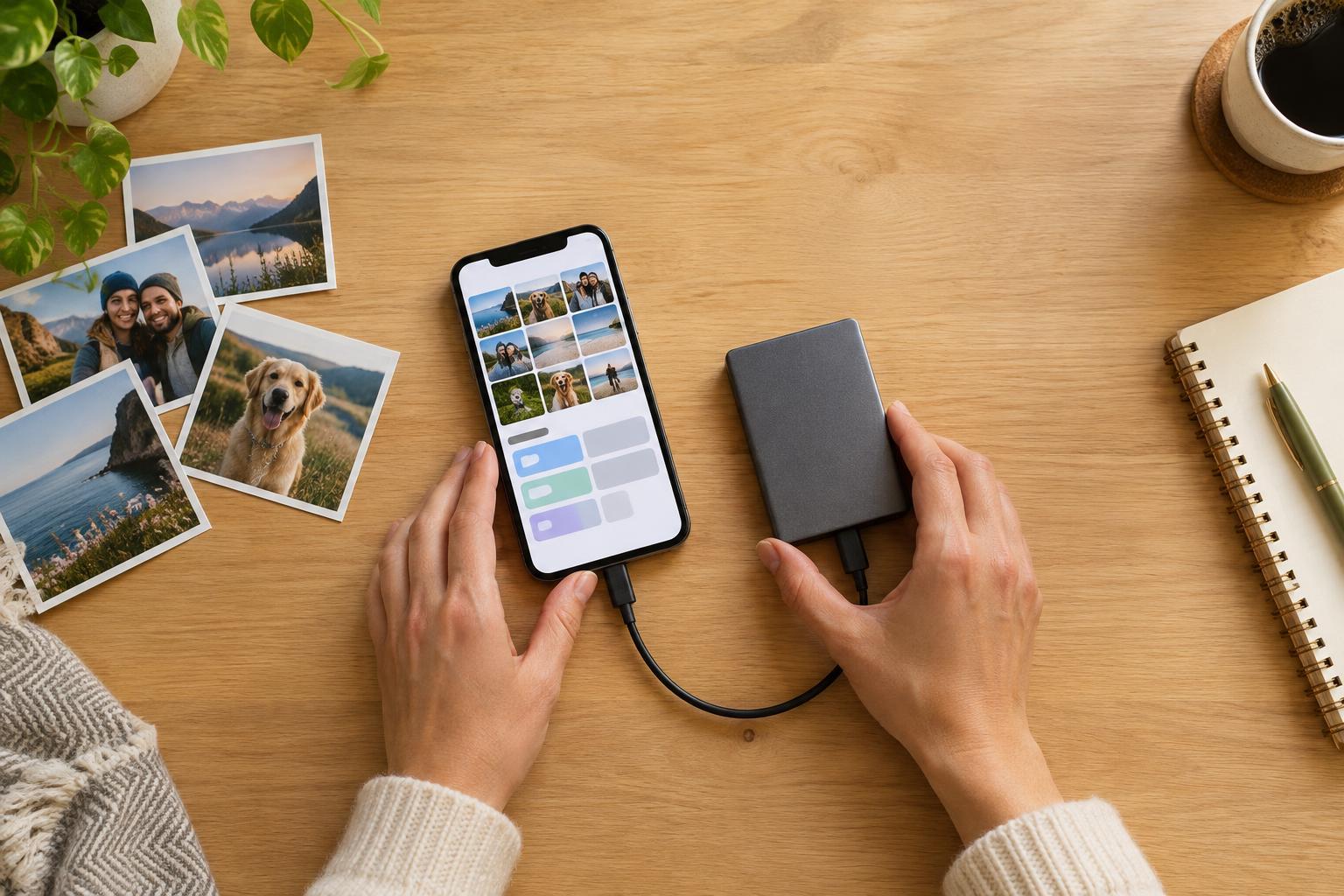
Make a short list of what matters before you remove anything: original photos and videos, documents, recordings, creative projects and files stored only inside an app. Copy irreplaceable items to another location, such as a computer, external drive or cloud account. Then open a few of the copied files to confirm they are actually there and usable. A backup you have not checked is a poor safety net.
Be especially careful with photo libraries and other services that sync across devices. Syncing is not always the same as keeping an independent backup: deleting a photo on your phone may also delete it from the connected cloud library and other devices. Read the wording of any “remove from device,” “free up space” or “delete everywhere” option before tapping it. If you are unsure, test with an unimportant file first and check what happens elsewhere.
If an app stores work only in its own data, confirm that its export or backup is complete before uninstalling it or clearing its data. Signing back in may restore an account without restoring drafts, local downloads or settings.
Clear easy-to-replace downloads first
Downloads are often the least stressful place to begin. Look in your Files or Downloads app for old documents, installation files and copies of things you can retrieve again. Sort by size if that option is available, but open unfamiliar files before removing them. A large file might be a finished project rather than disposable clutter.
Next, check individual apps for offline content. Streaming apps, podcast players, music services and map apps may each have their own downloads screen. Remove a show you have finished, an episode you no longer need or a map for a trip that is over. This usually keeps the app and your account in place while reclaiming space. Remember that downloading the material again later may require an internet connection.
Finally, look for duplicate photos, repeated downloads and screenshots that served a temporary purpose. Review suggested duplicates rather than accepting every match automatically; similar-looking images can capture different details. Delete in small batches so it is easier to spot a mistake.
Tidy apps, messages and photos carefully
If apps are the largest category, start with ones you no longer use. Check whether they contain local files or projects, then uninstall only after saving what you need. Some phones offer an option to remove an unused app while retaining its documents and data; read the description on your device rather than assuming it works the same way everywhere. Clearing an app’s temporary cache may also help, but avoid a “clear storage” or “clear data” command unless you understand what it will erase.
Long conversations can contain large videos and photo attachments. Many messaging apps let you review shared media or large attachments separately, which is safer than deleting an entire conversation. Save any meaningful attachments first. Likewise, photo apps may offer an option to keep smaller device copies while full-size originals remain in a connected account. Use that feature only after confirming where the originals are stored and how you would access them again.
Check your results and keep space available
After a cleanup, revisit the storage screen. Some deleted items remain in a Recently Deleted or Trash area for a while and may still count toward used space. Empty that area only after you have checked that nothing important is in it. Restarting the phone may also help the storage display update, though it will not create space by itself.
A simple monthly habit can prevent another storage scramble: review offline downloads, remove temporary screenshots and check that important new files are backed up. Leave some free space for app updates, new photos and normal phone activity. The safest approach is not one dramatic purge, but a series of small, verified decisions: identify the space-hog, preserve what matters, remove what is replaceable and check the result.