Start with what permissions do
App permissions let an app use parts of your phone or certain kinds of information. A map may need your location to give directions; a video-calling app may need your camera and microphone. Some requests are easy to understand. Others deserve a second look, especially when an app asks for access to contacts, photos or your location while you are not using it.
Reviewing permissions does not mean denying everything. The goal is to match access to the job you want the app to do. You can usually change a permission later, so a review is less about making a permanent decision and more about checking whether your current settings still make sense.
Find the permission controls
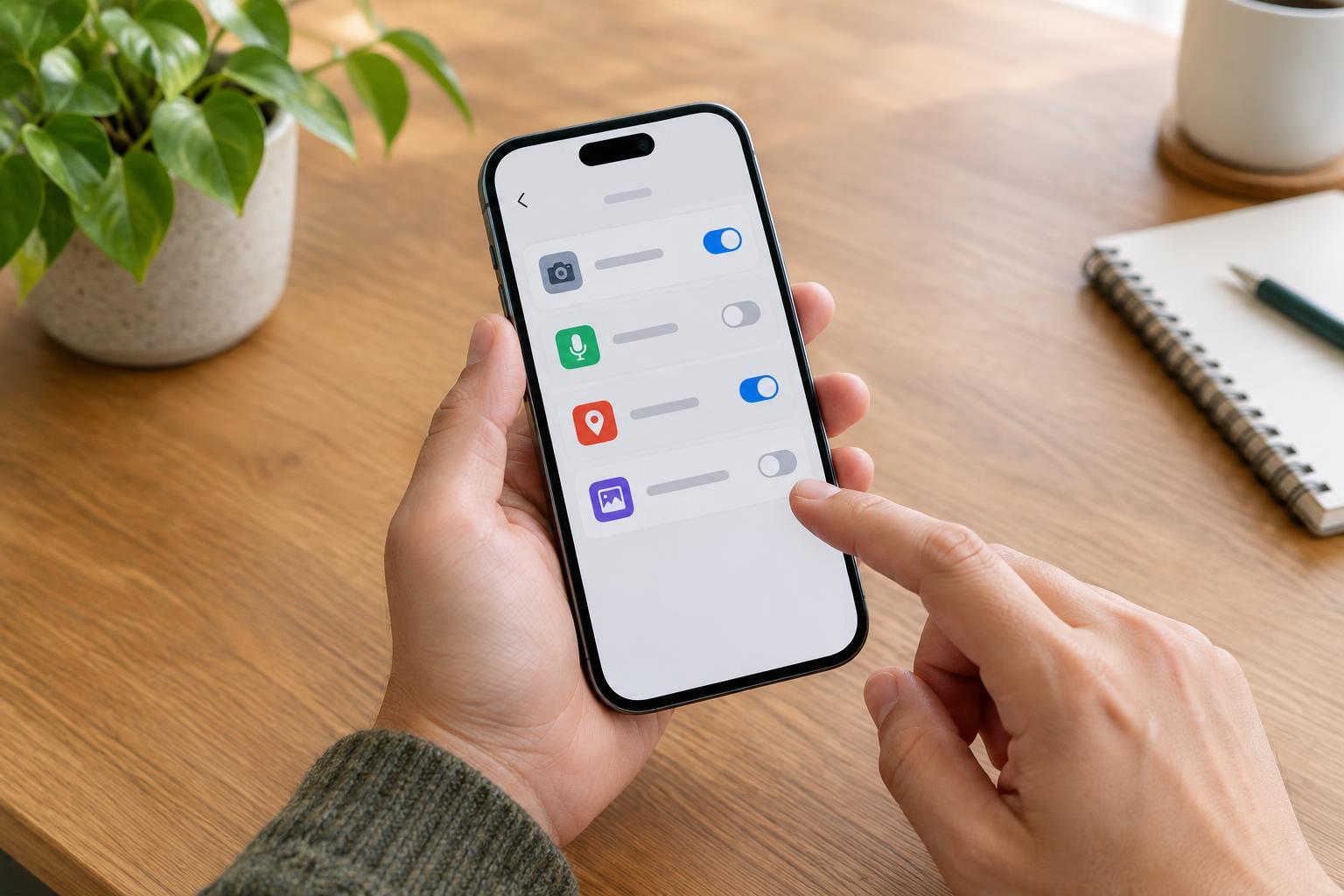
On an iPhone, open Settings and look for Privacy & Security. From there, you can choose a category such as Location Services, Microphone, Camera or Photos to see which apps have access. You can also find an individual app in Settings to review the controls available for it. Menu names and options may vary with your software version.
On Android, open Settings and look for Privacy, Security & privacy, or Apps. A Permission manager may let you view access by category, while an individual app’s settings usually include a Permissions page. Because Android menus differ among phone makers, using the search box in Settings for “permissions” can be the quickest route.
If your phone offers a privacy dashboard or a record of recent access, it can provide another useful view: not just which apps are allowed to use a feature, but which ones have used it recently. Treat that as a prompt to investigate, not automatic proof that something is wrong.
Decide what each app actually needs
Begin with sensitive categories: location, camera, microphone, photos and contacts. For each app listed, ask when you would expect it to use that access. A camera app needs the camera; a shopping app may not need your contacts. If you cannot connect a permission to a feature you use, consider turning it off and seeing whether the app still does what you need.
Pay particular attention to choices about timing and scope. Where available, “while using the app” can be a practical alternative to allowing location access all the time. Approximate location may be enough for broad local results, while turn-by-turn navigation typically needs more precise information. If you only need to share one picture, look for an option to select specific photos rather than granting access to your entire library.
An app might ask for a permission only when you open a particular feature. If you are unsure, you can decline the request and try that feature later. The app may explain what it needs, and you can grant access then. Be more cautious about removing permissions from tools you rely on for calls, navigation, accessibility or other important tasks.
Make changes and check the result
Change one or two settings at a time, then use the affected apps as you normally would. If a feature stops working, return to the permission screen and choose the narrowest option that restores it. This approach makes it easier to understand which change caused a problem than switching off every permission at once.
Permissions are only part of the picture. Notification settings determine which apps can interrupt you, and an app may have its own controls for sharing information or syncing data. If you no longer use an app, deleting it may be simpler than maintaining its settings. You can also review the permissions an app requests before deciding whether to install it.
Keep the review manageable
You do not need to inspect every setting in one sitting. Start with apps you rarely use, apps that have broad access, and any permission that surprises you. Then revisit the list after installing a batch of new apps or when you notice a request that does not fit what you were trying to do.
The most useful question is straightforward: “Does this app need this access for something I want it to do?” If the answer is no or you are not sure, try a narrower setting. A few deliberate choices can leave your phone working the way you expect, with fewer apps able to reach information they do not need.