Start with the router, not just the Wi-Fi password
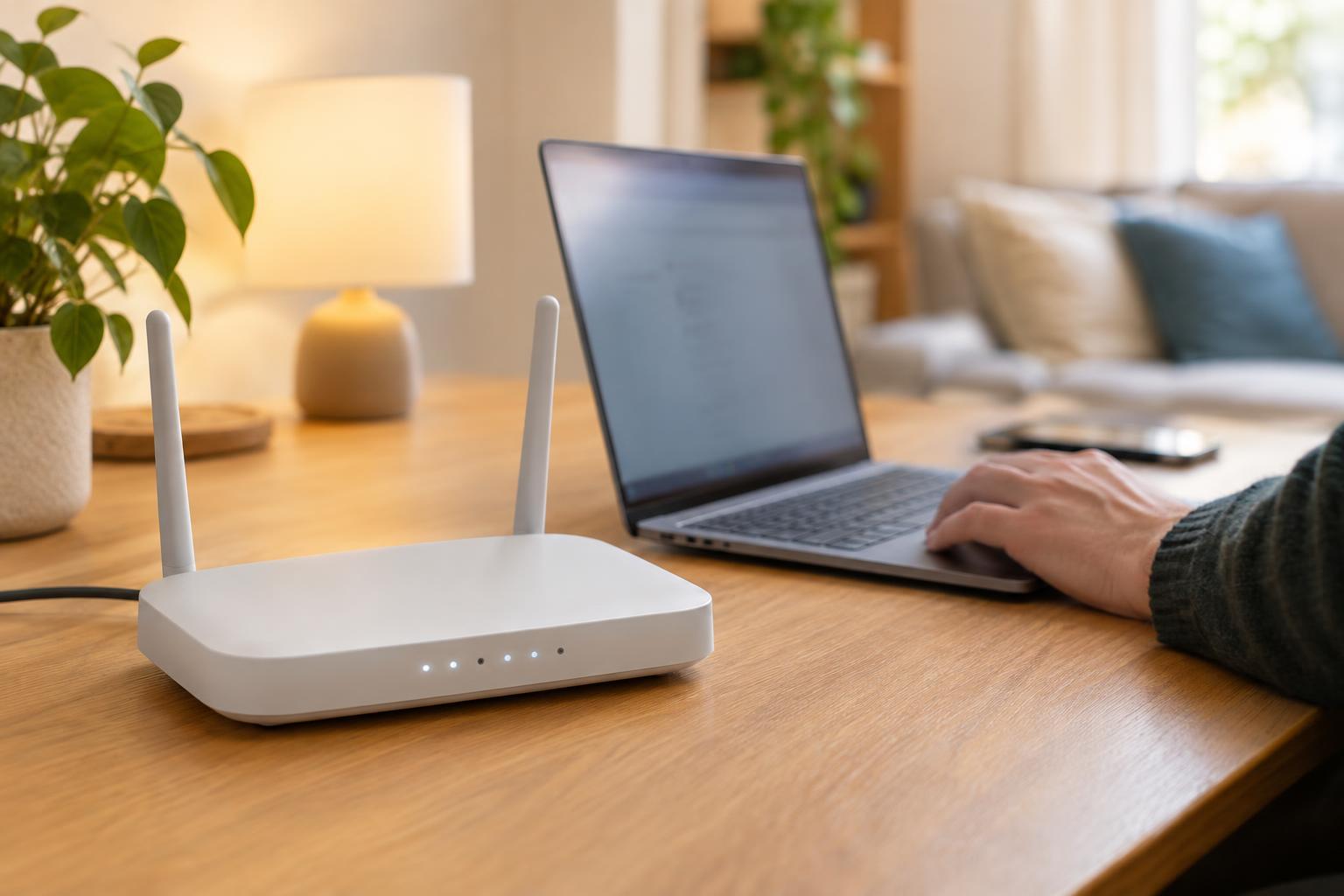
Your home router has two important sets of credentials: the password devices use to join Wi-Fi and the administrator login used to change router settings. Changing the Wi-Fi password alone does not protect the settings if the administrator account still uses an easily guessed or default password. Find the router’s management instructions on its label, in its companion app or in documentation from your internet provider. Make changes while connected to your own network, and check that you are using the router’s official app or local settings page.
Set a unique, long administrator password and store it in a password manager or another secure place. If the router lets you change the administrator username, consider doing that too. Turn off remote administration from the internet unless you have a specific need for it. On a router managed by your internet provider, some settings may be controlled through the provider’s app or unavailable to you; use the controls you do have rather than assuming every menu will look the same.
Choose strong wireless protection
In the wireless security settings, choose WPA3-Personal if the router and all your devices support it. Otherwise, WPA2-Personal with AES is a sound choice for a typical home network. A WPA2/WPA3 transition mode may help when you have a mixture of older and newer devices. Avoid older options such as WEP and WPA, which do not provide the same protection. If a device cannot connect after you change modes, check its supported security options before weakening the settings for the entire household.
Give the Wi-Fi network a long, unique password that you do not reuse for other accounts. A memorable string of unrelated words can be easier to type and share with household members than a short, complicated-looking password. Change any factory-set Wi-Fi password if it is weak or has been shared more widely than intended. Disable Wi-Fi Protected Setup, often called WPS, if you do not use it. WPS can make joining convenient, but it is not necessary when you can enter or share the Wi-Fi password directly.
Keep the router and connected devices up to date
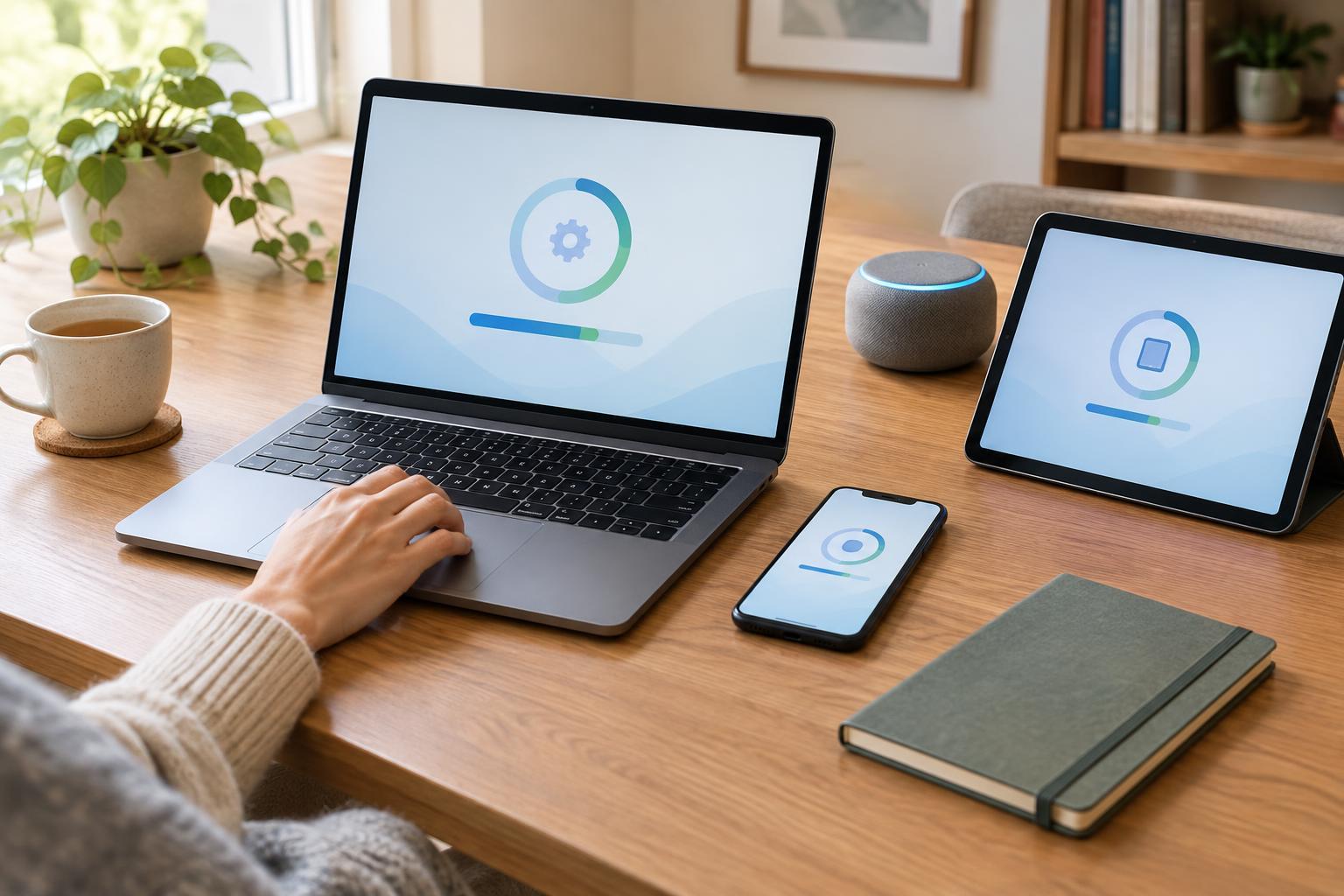
Router software, sometimes called firmware, receives fixes and improvements. Look for an automatic-update setting and enable it if available. If updates are manual, make a reminder to check the router’s app or management page periodically. Use updates offered by the router maker or your internet provider, rather than downloading files from an unfamiliar link. A router that no longer receives updates may eventually be worth replacing, particularly if it also lacks modern wireless security options.
The devices on the network matter as well. Install updates for phones, computers, streaming boxes and smart-home products, and review devices you no longer use. Many routers show a list of connected devices, although names can be vague. Compare the list with what you own before assuming an unfamiliar entry is an intruder. If you cannot account for a device, changing the Wi-Fi password and reconnecting your own devices is a reasonable next step.
Give guests and smart devices an appropriate place
A guest network lets visitors get online without knowing the password for your main Wi-Fi. Give it its own strong password, and switch on any available setting that prevents guest devices from reaching other devices on your home network. This is useful when you would rather not give a visitor access to shared printers, files or other equipment. Check how your particular router defines guest access; features vary.
You can also consider putting smart plugs, speakers and similar devices on a separate guest or device network if your router supports it. Test the arrangement before relying on it: some products need to communicate with a phone, hub or other device on the main network and may not work when isolated. Separation is one useful layer, not a substitute for strong passwords and updates.
Make a short security check a habit
Once the basics are set, a quick review is usually more useful than repeatedly changing passwords without a reason. Check that your chosen WPA mode is still enabled, updates are arriving, and the connected-device list makes sense. If you shared the Wi-Fi password with someone who should no longer have access, change it and reconnect the devices you trust. Keep the new password somewhere secure so you are not tempted to replace it with an easy one.
Finally, remember what these settings do and do not accomplish. A secure Wi-Fi network helps control who can join it, but it does not make every website, app or connected device safe. Keeping devices updated, using unique account passwords and being cautious about unexpected login prompts remain important. Start with the router login and wireless settings, then add the other steps as your equipment allows.