Start with the network name
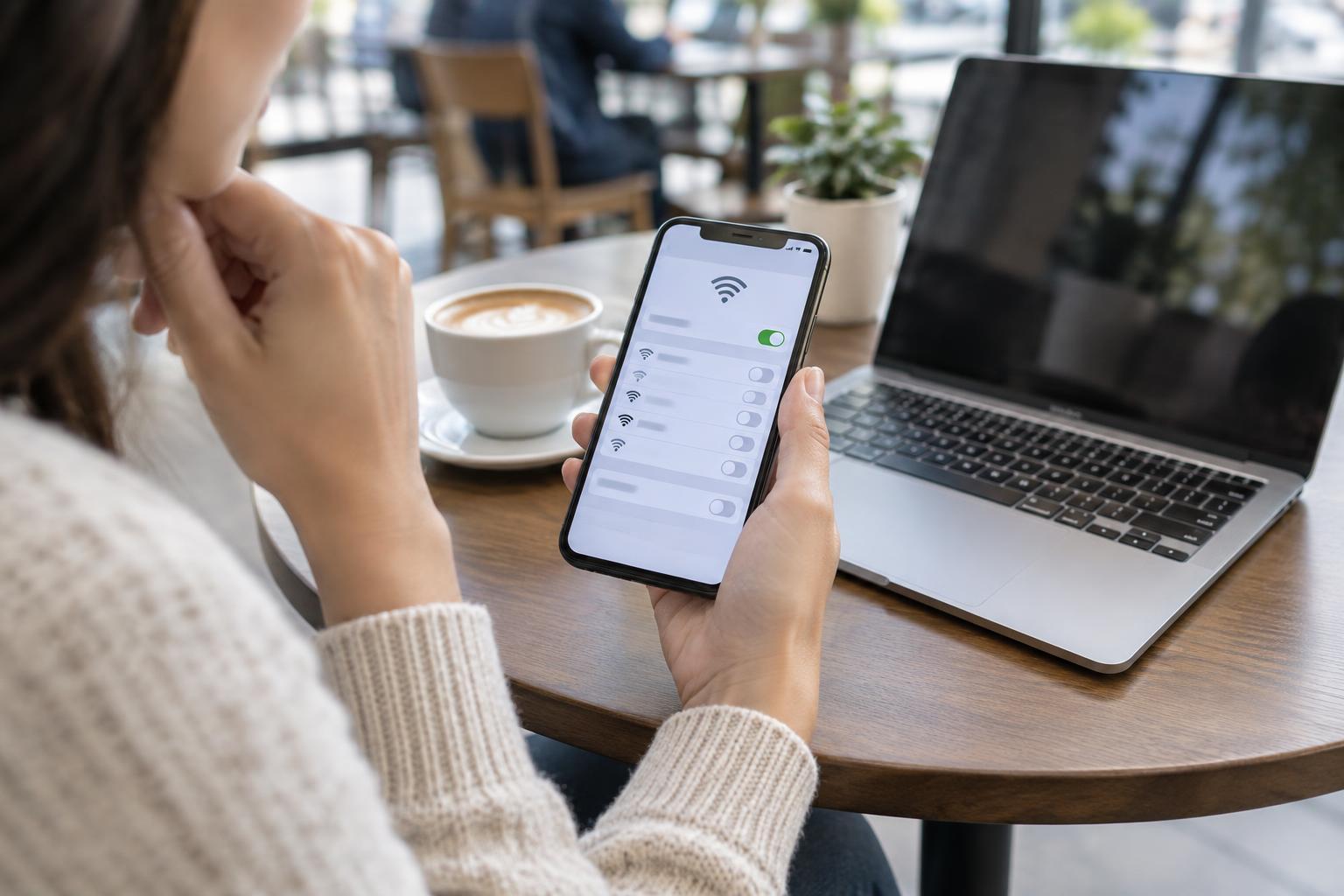
Public Wi-Fi is convenient when you need directions, want to send a message or have time to work away from home. Before joining, check which network the venue actually provides. A café or library may display the name near the counter or on a sign; if it is unclear, ask a staff member. Do not assume the network with the strongest signal or the most familiar-looking name is the right one. Someone nearby could set up a similarly named network.
Look at your device’s list of saved networks, too. If it joins public networks automatically, turn that feature off for networks you do not control. Automatic joining can connect you before you have a chance to check where you are. Remove old public networks you no longer use, especially ones with generic names such as “Guest Wi-Fi.”
Treat sign-in pages with care
Some public networks open a page asking you to accept terms or enter a room number or access code. That page is often called a captive portal. Check that its request makes sense for the place you are visiting. A surprise demand for your email password, payment card details or a software download is a reason to stop and ask staff whether the page is legitimate. When in doubt, disconnect rather than guessing.
A Wi-Fi password can limit who joins a network, but it does not make every website or app you use private. For websites, look for the browser’s secure-connection indicator and a web address beginning with https before entering information. This helps protect the connection between your browser and that website, though it does not prove the website itself is trustworthy. If a browser warns that a site’s connection is unsafe, do not dismiss the warning just because the Wi-Fi seems familiar.
Check your device before browsing
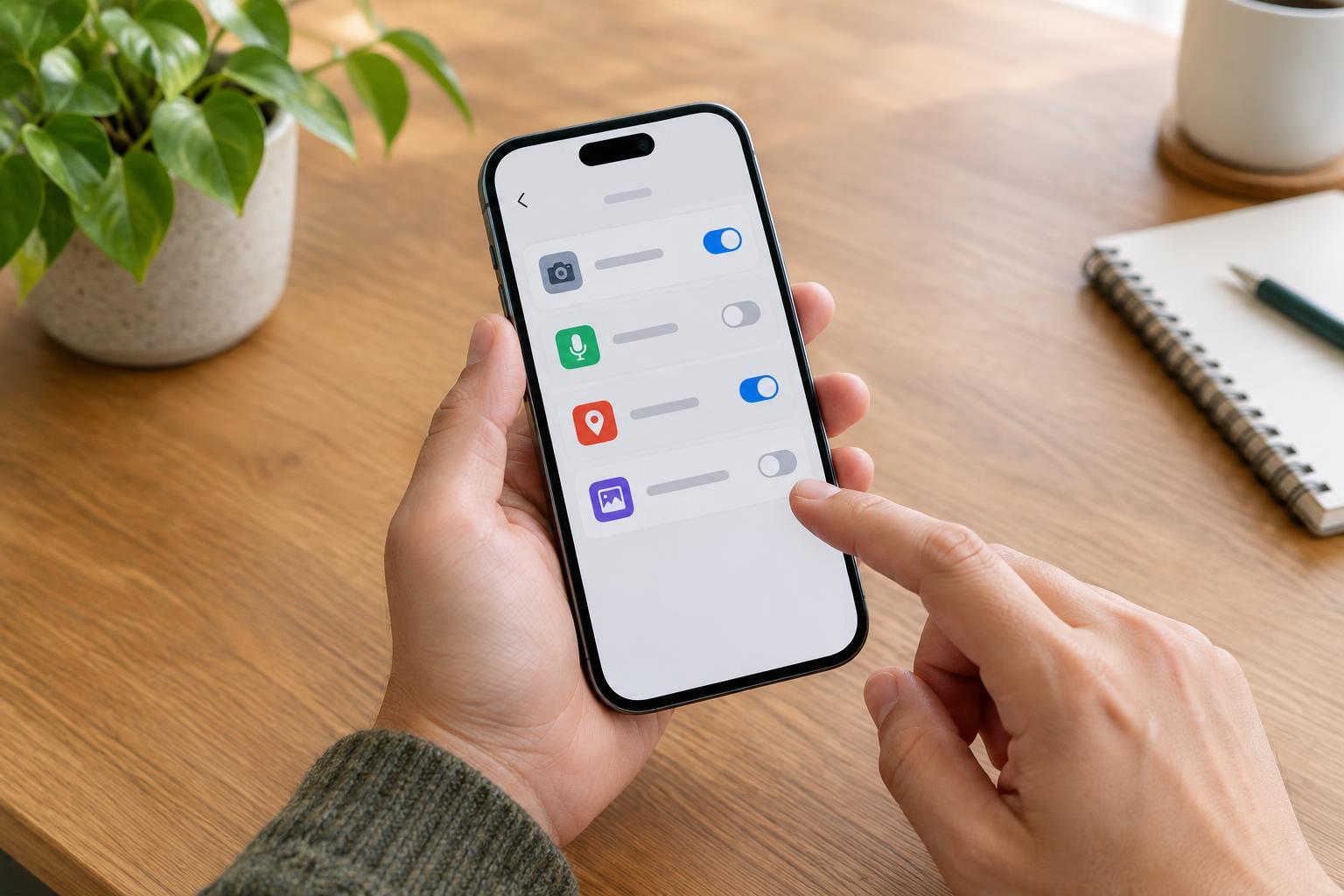
Keep your operating system, browser and apps updated so they have available security fixes. On a laptop, set the public network to a public or untrusted profile if your system offers that choice. Check that file sharing, device discovery and other features meant for a home network are off. These settings reduce the chance that strangers on the same network can see a shared folder or find your device.
Use a screen lock, and leave your device’s firewall on if it has one. These habits matter beyond public Wi-Fi, but they are easy to overlook when you are rushing to connect. If you use a VPN, connect it through an app or service you already trust. A VPN can add protection for traffic between your device and the VPN provider, but it cannot make a fake website safe or protect a password you willingly enter into one.
Choose what to do on the connection
Ordinary browsing on a correctly identified network is different from accessing a sensitive account. If you need to check banking details, make a purchase or send private documents, consider using your phone’s mobile data or a personal hotspot instead. If that is not practical, use the official app or type the website address yourself rather than following an unexpected link from a pop-up, email or sign-in page.
Turn on multifactor authentication for important accounts where it is available. It adds a step beyond your password if someone obtains your sign-in details. Do not share one-time codes with anyone who asks for them, including a page that appeared unexpectedly after you joined Wi-Fi. You can also save tasks that do not need a connection, such as editing a downloaded document, for times when the network feels uncertain.
Disconnect deliberately
When you are finished, disconnect from the public network. If you do not expect to use it again, choose “forget this network” in your device settings so it will not reconnect later without your noticing. You can turn Wi-Fi off entirely while moving between locations. This is particularly useful if you have saved networks with common names.
Public Wi-Fi safety is less about finding one perfect setting than making a few checks each time: confirm the network, question unusual requests, keep your device protected and choose a different connection for sensitive tasks when you can. If anything about the connection seems wrong, you do not have to troubleshoot it on the spot. Disconnecting and trying again later is a reasonable choice.