Start with one small annoyance
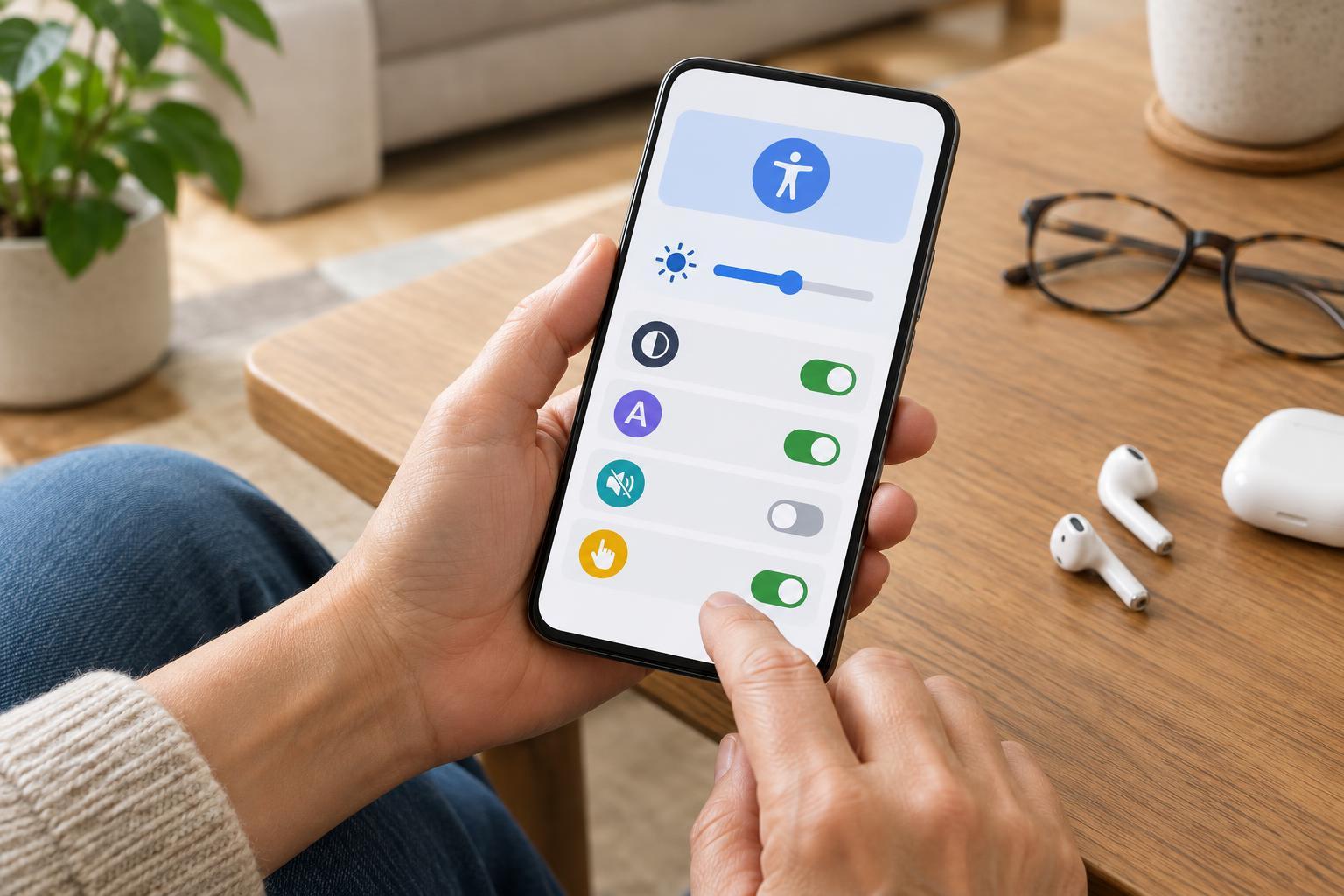
You do not need to identify as someone who needs an accommodation to benefit from your phone’s accessibility settings. They can help when you are reading in bright light, following a video in a noisy room, or trying to tap a tiny button. The best place to start is with something that regularly slows you down. Open your phone’s Settings app and look for Accessibility. Names and locations vary by device and software version, so use the Settings search bar if you do not see it.
Change one setting at a time, then use your phone normally for a day or two. Try it in the app or situation that prompted the change, not just on the Settings screen. If it gets in the way, switch it back. Some features behave differently across apps, and a setting that helps one person may be distracting to another.
Make screens easier to read
If you find yourself bringing the screen closer to read it, try increasing text size before changing the entire display. Many phones also offer bold text, higher contrast, or a display-size option that enlarges buttons and other interface elements. Larger text may cause some app layouts to look crowded, but it is worth testing at a comfortable size. A screen magnifier or zoom feature can help with occasional fine print without making everything larger all the time.
Brightness and color settings deserve a separate look. Automatic brightness can be convenient, but you may prefer to adjust brightness yourself in certain lighting. Dark mode, color filters, and settings that reduce visual effects can make a screen more comfortable for some people, though there is no single combination that suits everyone. Test your choices while reading a message, viewing a photo, and navigating a familiar app so you can spot trade-offs.
Give your ears a break
Captions can make speech easier to follow when you cannot turn up the volume or when the sound is unclear. Look for caption preferences in Accessibility, then check whether your video apps have their own caption controls. Some phones can also generate captions for certain audio playing on the device. Availability and accuracy vary, so treat automatically generated words as an aid rather than a perfect transcript, especially for names or unfamiliar terms.
If alerts are easy to miss, explore options such as vibration patterns, visual notifications, or a flash alert. Headphone audio balance and mono audio controls may also be useful: balance changes the relative volume between left and right, while mono combines stereo channels so sounds intended for one side are not lost. Keep notification changes selective. Making every alert more noticeable can quickly become tiring.
Make controls easier to use
Small targets and repeated gestures can make an otherwise useful app frustrating. Look for settings that adjust touch response, allow an on-screen menu for common actions, or replace a button press with another method. Voice control and dictation can help when your hands are occupied, although they work best when you can review what the phone heard before sending a message or taking an important action.
You can also check for options that reduce animation or motion. These may make transitions feel calmer and help you keep track of where you are on the screen. If you often tap the wrong thing, try a larger display size and simpler home-screen arrangement before learning a new control system. A few well-chosen shortcuts are usually easier to remember than changing every gesture at once.
Set up a combination you will actually keep
After trying individual features, choose the ones that solve a repeat problem. You might keep larger text and captions on all the time, but use magnification only when you need it. Many phones let you add an accessibility shortcut to a button, quick-settings panel, or on-screen control. That makes an occasional feature easier to use without leaving it enabled throughout the day.
Finally, check how your choices work beyond the built-in apps. Open a website, send a short test message, and try any app you use often. If a voice or audio feature processes speech, review its description and privacy options before relying on it. Your goal is not to enable the most settings; it is to make ordinary tasks feel a little less demanding.