What an offline map can and cannot do
An offline map is a saved copy of map information that your phone can use without a mobile data connection. It can be useful on a road trip, in a rural area, while traveling abroad, or anywhere reception is unreliable. You usually need an internet connection to download the map in advance, but you may be able to view it and get certain directions later without one.
Offline features vary by app. A saved area may include streets and place names but not live traffic, recent road closures, business hours, or every type of route. Walking, cycling, and public transit directions may be limited or unavailable offline. Your phone’s location system can often show where you are without mobile data, though finding your position may take longer or be less reliable in some settings. Treat a downloaded map as a helpful backup, not a guarantee that every navigation feature will work.
Choose the area you actually need
Before downloading, think beyond your destination. Include the route to get there, nearby towns, and a little room for detours. If you are driving from an airport to a hotel, for example, saving only the few blocks around the hotel will not help much along the way. For a short local outing, a smaller area may be easier to download and take up less storage.
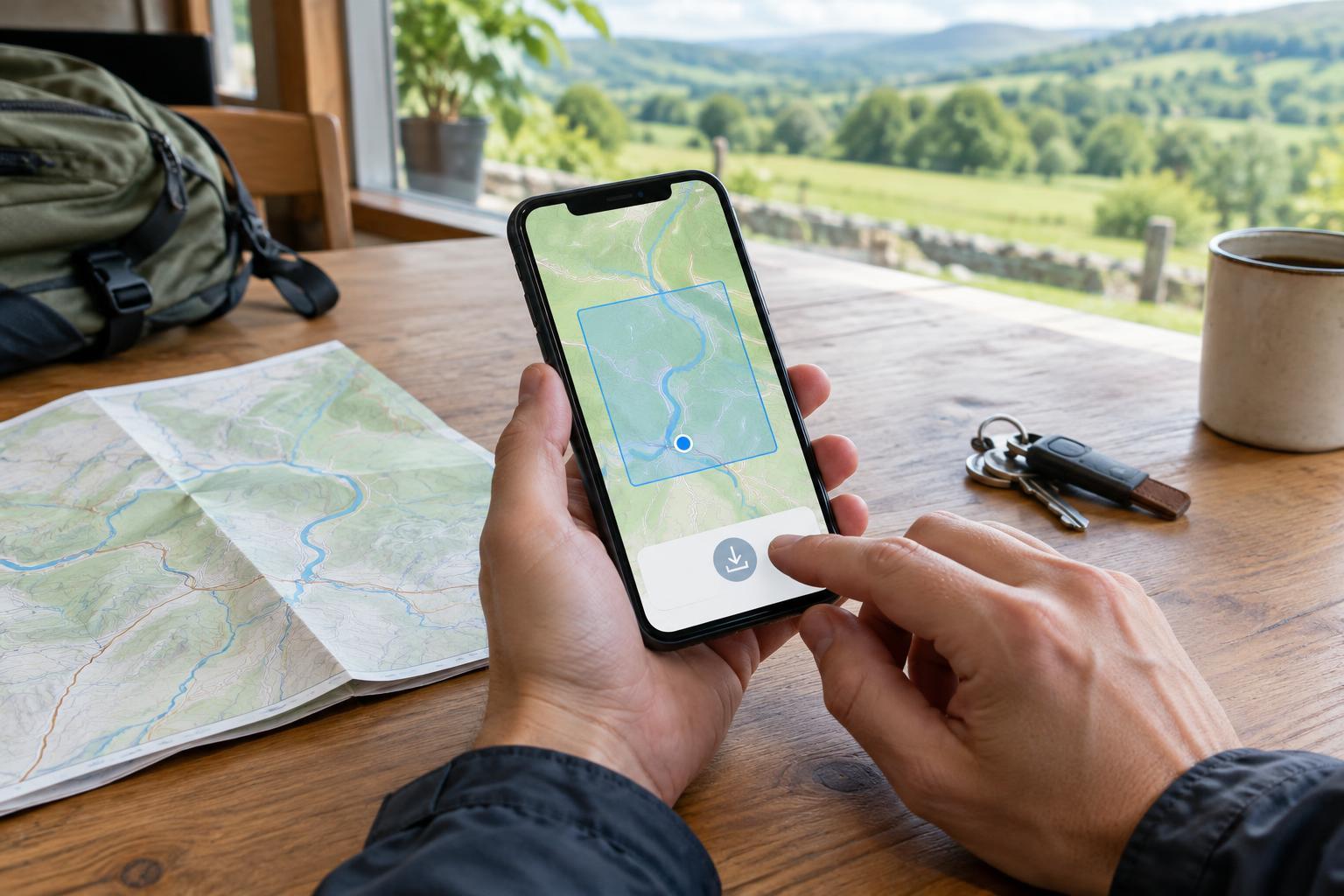
Most map apps let you search for a place or open an offline maps setting, then move and resize a rectangle around the area to save. The app should show an estimated download size before you confirm. If the region you need is too large, split it into overlapping areas when the app allows it. That overlap can help you avoid a gap between saved maps.
Connect to Wi-Fi if you want to conserve mobile data, and check that your phone has enough free storage. Large regions or detailed maps can require more space than expected. Download while you have a stable connection rather than waiting until you are about to leave.
Download and check the map
Open your preferred navigation app and look in its profile, settings, or map menu for an option labeled “Offline maps,” “Download maps,” or something similar. Select the region, adjust its boundaries, and confirm the download. Menu names differ among apps and can change, so use the app’s search or help feature if you cannot find the option. Keep the app open if it asks you to, and wait for a clear indication that the download is complete.
Next, find the list of saved maps and confirm that your area appears there. Check whether the app offers automatic updates and whether those updates are restricted to Wi-Fi. Maps can become outdated as roads, entrances, and businesses change, so refresh yours before a trip if it has been on your phone for a while. Also note any expiration date shown by the app.
For extra confidence, save the destination’s address somewhere you can access without a connection, such as a note or screenshot. A pin that depends on a cloud account or a search result that has not loaded may be harder to retrieve when you are offline.
Test it before you rely on it
A quick test can reveal problems while you still have time to fix them. With the map downloaded, temporarily turn off Wi-Fi and mobile data, then reopen the app and zoom in on your route and destination. Try starting the kind of directions you expect to use. If the app cannot find a place by name, try its address or select it directly on the map. Restore your connections after the test.
Check your location permissions as well. The navigation app needs access to your phone’s location to show your position, and your device’s location setting must be on. Some phones handle location differently in airplane mode, so switching off Wi-Fi and mobile data separately can be a clearer first test. If you plan to use airplane mode during the trip, test that exact setup too.
Keep an eye on battery life: navigation can use power even when it uses no mobile data. Charge your phone before leaving and consider bringing a charger or power bank for a longer journey.
Use it as one part of your plan
Once you are underway, open the saved map before entering a low-signal area. If your route stops updating, do not try to troubleshoot while driving. Pull over somewhere safe, check that you are within the downloaded region, and restart directions if necessary. Be prepared to follow posted signs, especially where the map and the road disagree.
For trips where getting lost would be more than an inconvenience, keep a second way to find your route. That might be written directions, a paper map, or a travel companion who knows the area. A few minutes spent choosing, downloading, and testing the right region can make an offline map far more useful when you need it.